
Submit your collection data
For all ATBI samples: connect your sample codes to their field records in Survey123.
Choose the right app
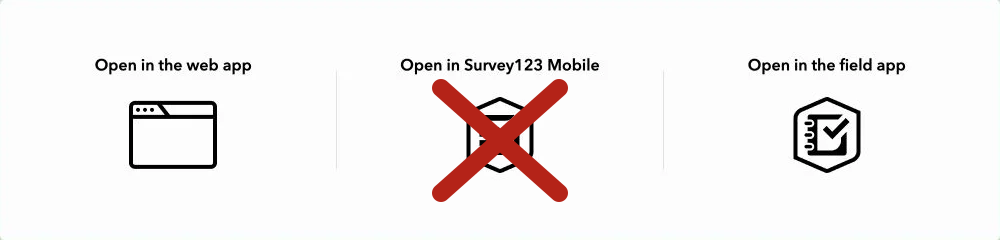
Choose “Open in the web app” or “Open in the field app.”
Do NOT choose “Open in Survey123 Mobile.”
A phone’s web browser works. Use the field app for offline collection.
 Enlarge screenshot
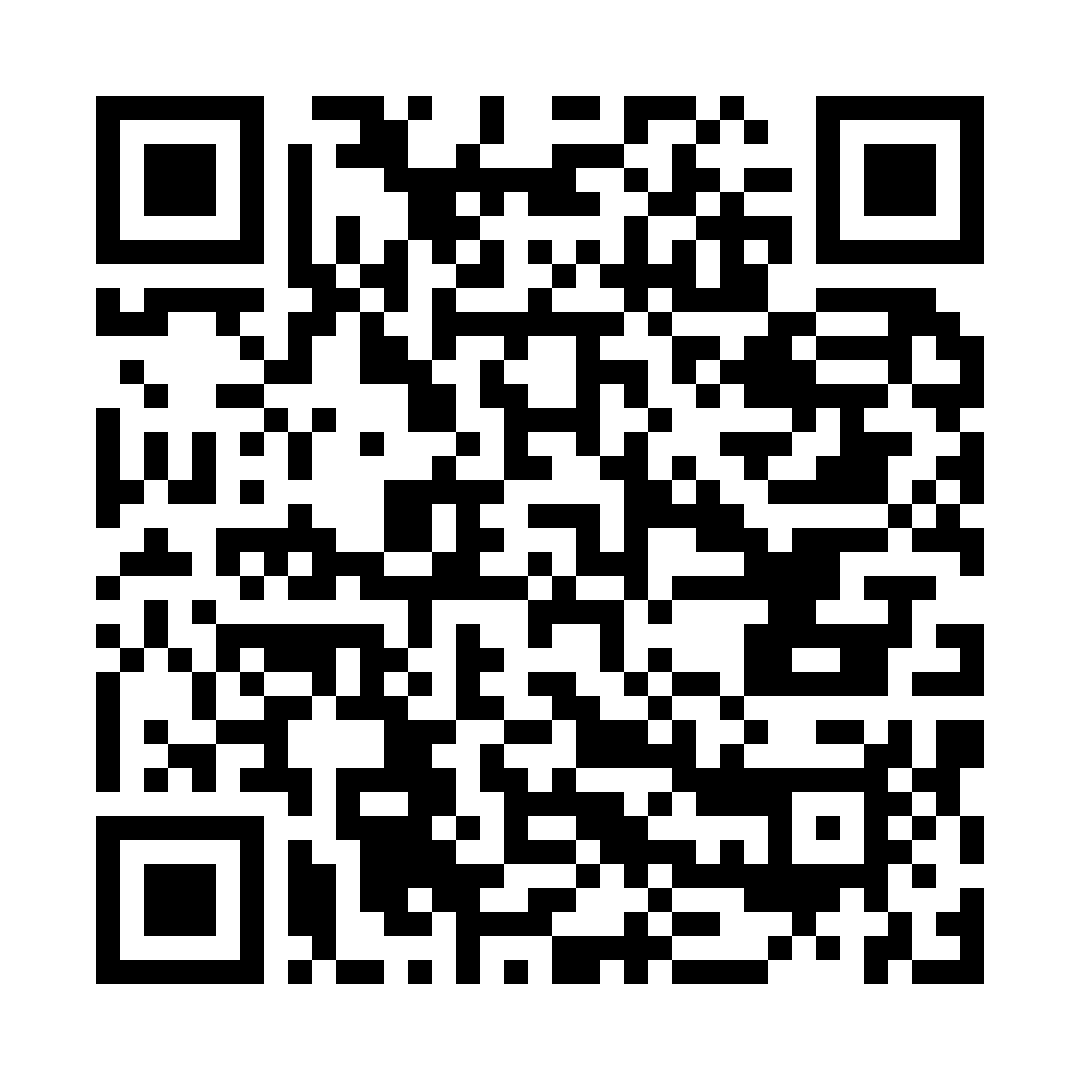
Use the button on this device, or scan the QR from another screen.
Watch the data-submission guide
This 2:19 guide shows how to open Survey123, scan codes and send a record. Follow the survey prompts for your sample type.
From sample to submitted record
Open the right survey
Use the link or QR above and choose the web app or field app. For offline work, install the field app and download the survey while online.
Using a web browser?You can skip the field-app setup below and enter your record directly while online.
Prepare the field app
 Enlarge screenshot
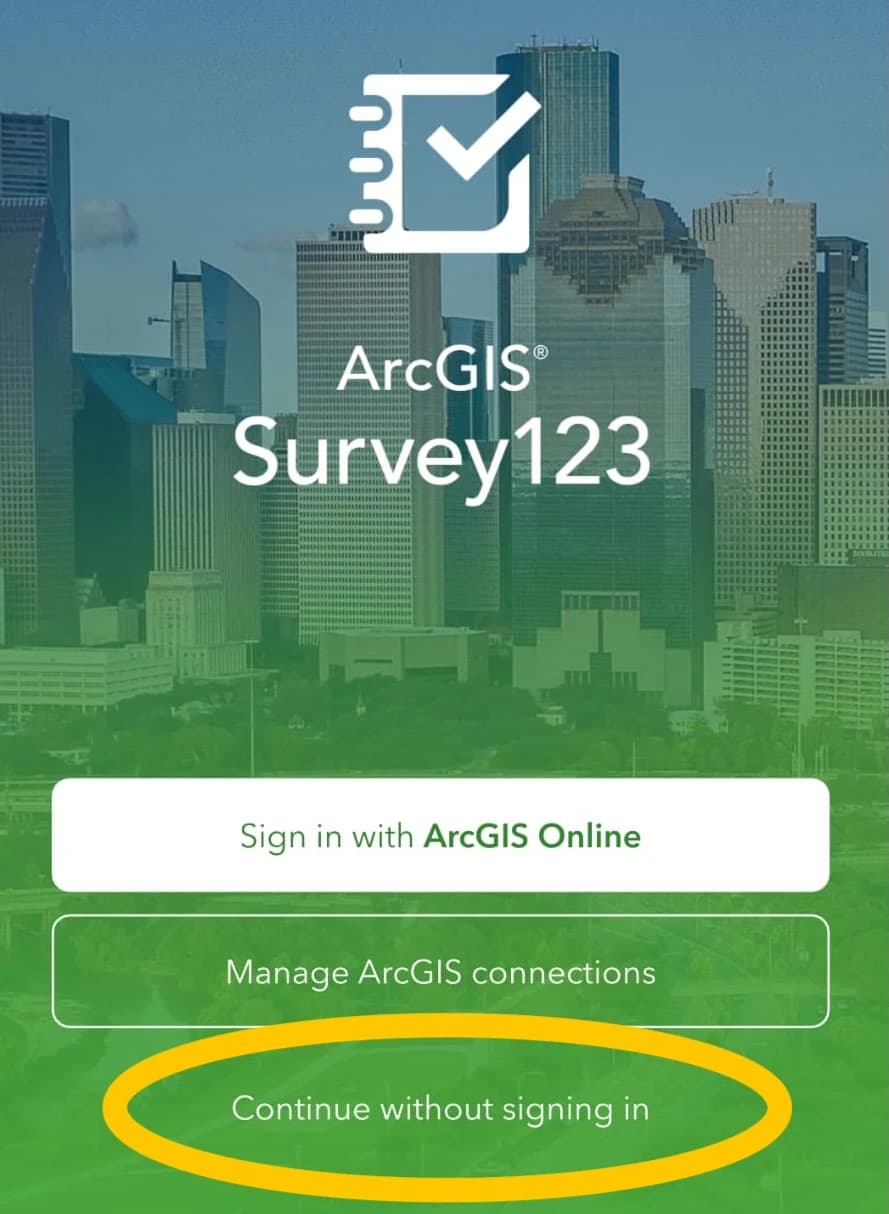
Continue without signing in
Choose the circled option on the welcome screen. Allow camera and location permissions when prompted.
 Enlarge screenshot
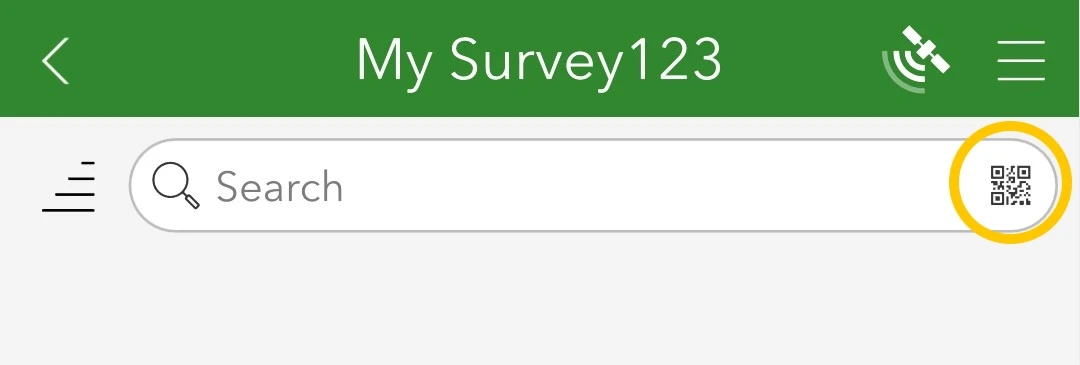
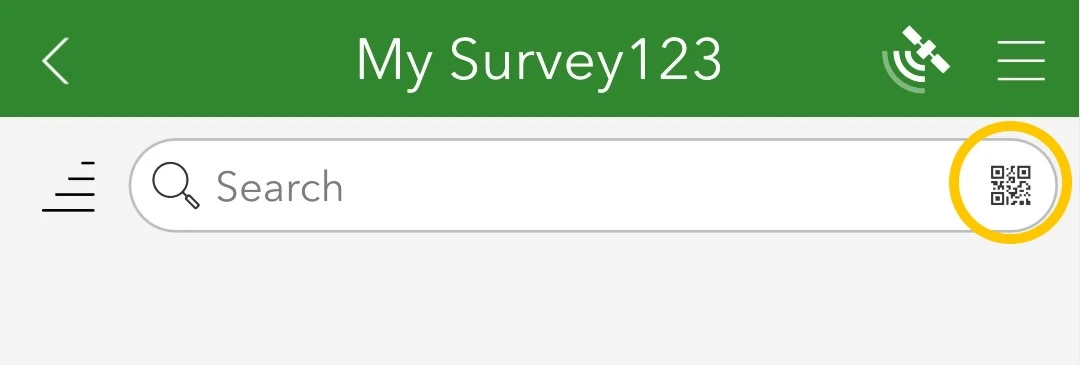
Tap the QR scanner
If the survey is missing, tap the circled icon beside the search bar and scan the survey QR above.
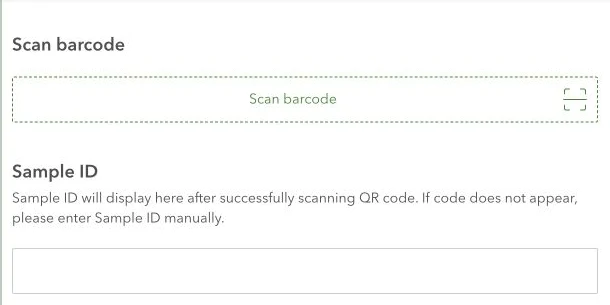
Scan your sample code
Scan the sample’s QR or barcode, or enter its identifier. Complete the collection details requested for your sample type, such as dates, location and photos. Check your name and email before sending.
 Enlarge screenshot
Review and send
Check your sample ID and collection details, then submit while online. In the field app, offline records stay in the Outbox: reconnect and send them to finish.
Saved offline does not mean submitted. Check that your Outbox records have been sent.
One sample.
One submitted record.Optional: save favorite answers in the field app to speed up later entries.

Collection guides & help
Use your sampling kit’s own guide for collection instructions.